How to Make Product Videos Inside Claude (With HeyOz)
Claude can't generate video on its own. Connect HeyOz and you can upload product photos, type one prompt, and get a finished product video right in the chat.
■ The short answer
- Claude can't make videos by itself — but it can use a video tool once you connect one.
- Add HeyOz as a connector in Claude, drop in your product photos, and ask for the video in plain English.
- Claude picks the HeyOz tool, generates the clip (Wan 3.0, Kling, Seedance, Veo and more) and shows it right in the chat.
- Setup takes about 3 minutes. A 10-second clip takes a few minutes to render.
■ Workflow at a glance
- Create a HeyOz account — Sign up at heyoz.com. Optionally add your brand and products so Claude can find your product shots later.
- Connect HeyOz to Claude — In Claude, open Settings → Connectors → Add custom connector, paste the HeyOz connector URL (https://heyoz.com/api/mcp), then sign in to HeyOz to approve access.
- Upload your product photos — Start a new Claude chat and drag in 2–5 clear photos of your product (and a model, if you want one in the shot).
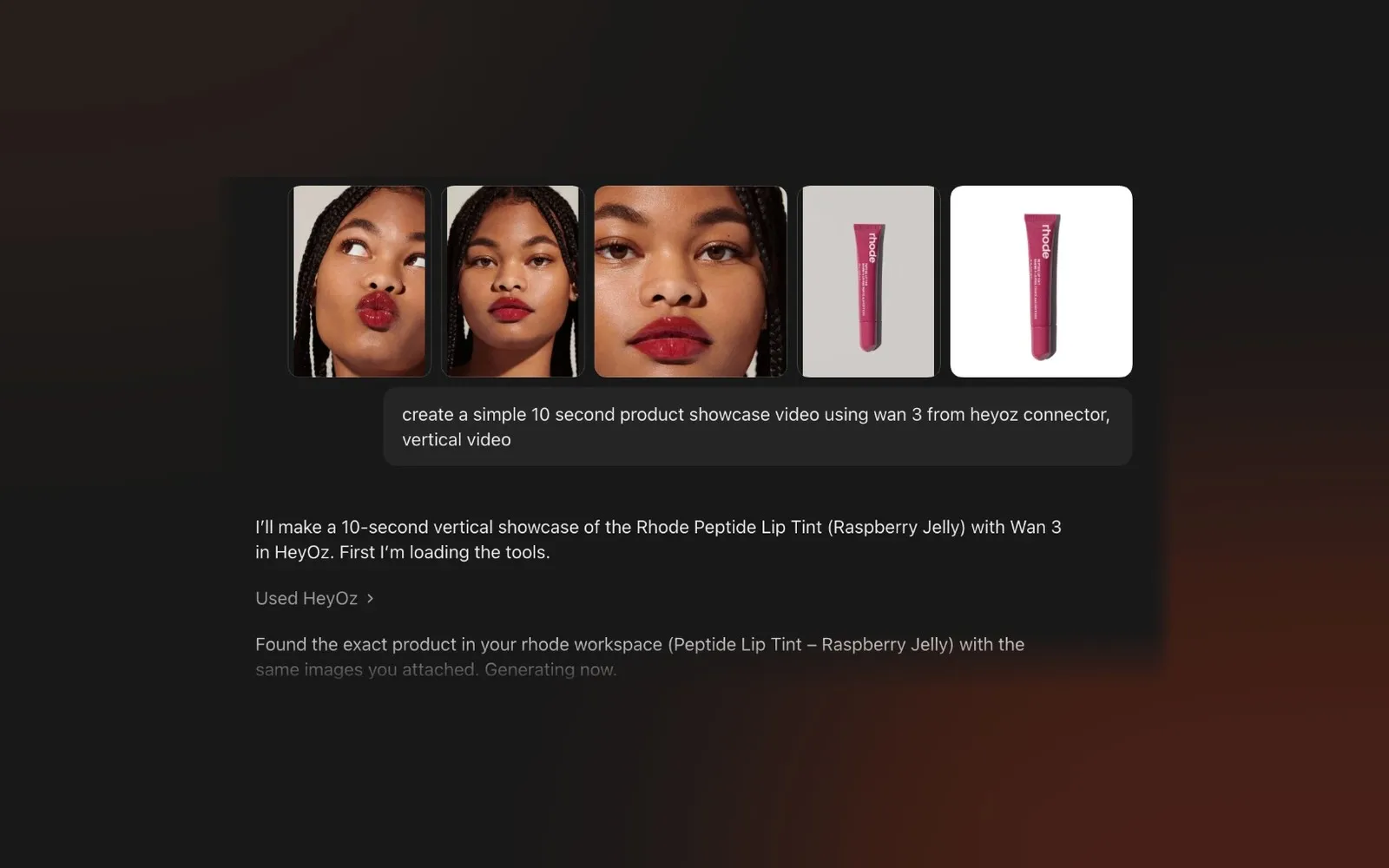
- Tell Claude what you want — Describe the video in one line: length, model, aspect ratio and the feel. Example: create a simple 10 second product showcase video using Wan 3 from HeyOz, vertical video.
- Review and download — Claude runs HeyOz's generate_video tool and shows the finished clip in the chat. Ask for changes in plain English, or click Open in HeyOz to download.
Claude can’t generate video by itself. Ask it for a product video and it will politely tell you it can write you a script instead. But Claude can use outside tools through connectors — and once you connect a video tool like HeyOz, you can upload your product photos, type one sentence, and get a finished clip back in the same chat.
This is the exact setup from our video. It takes about three minutes.
What you’ll need
- A Claude account (claude.ai or the Claude desktop app) with access to connectors
- A HeyOz account — sign up at heyoz.com
- 2–5 clear photos of your product (plain background works best)
Step 1: Create a HeyOz account
Sign up at heyoz.com. You don’t have to do anything else to make it work with Claude, but two things help:
- Add your brand (name, colours, tone) so generations stay on-brand.
- Add your products with photos. Claude can then find the right product in your HeyOz workspace by name — in our demo it matched the lip tint we uploaded to the product already saved in HeyOz.
Step 2: Connect HeyOz to Claude
- In Claude, open Settings → Connectors.
- Click Add custom connector.
- Name it HeyOz and paste the connector URL:
https://heyoz.com/api/mcp- Click Connect and sign in to HeyOz to approve access.
That’s it. In any new chat, Claude can now see HeyOz’s tools — generate_video, generate_image, create_ugc_ad, create_static_ads, create_product_photoshoot and more. You’ll see them listed under the connector.
Step 3: Upload your product photos
Start a new chat and drag your photos in. For a product showcase, use:
- 1–2 clean product shots (front-facing, good light)
- optionally 1–3 model shots if you want a person in the video
The photos become reference images, so the video keeps your actual packaging, colours and label.
Step 4: Tell Claude what you want
One line is enough. This is the exact prompt from our video:
create a simple 10 second product showcase video using wan 3 from heyoz, vertical videoA good prompt names four things:
| What | Example |
|---|---|
| Length | 5, 10, 15 seconds |
| Model | Wan 3.0, Kling 4, Seedance 2.5, Veo 3.1 |
| Format | vertical (9:16) for Reels/TikTok, square (1:1), or 16:9 |
| Feel | “slow orbit on a marble counter”, “hands applying it, soft daylight” |
Claude loads the HeyOz tools, picks up your photos, and starts the generation. You’ll see it call HeyOz · generate_video in the chat.
Step 5: Review, tweak and download
When it’s done, the clip plays right in the conversation (Claude uses HeyOz · show_creations to display it). From there:
- Ask for changes in plain English — “make it 15 seconds”, “add a slow push-in”, “try it with Kling 4”.
- Check the details. AI video can blur small text on packaging, so look closely at your logo and label before posting.
- Click Open in HeyOz to download the file or keep editing there.
Which model should you pick?
All of these are available through HeyOz (current as of November 2026):
| Model | Max length | Native audio | Good for |
|---|---|---|---|
| Wan 3.0 | 30s | Yes | Clean product showcases with up to 10 reference images |
| Kling 4 | 30s | Yes | Multi-shot clips and realistic motion |
| Seedance 2.5 | 30s | Yes | Longer scenes with lots of references (up to 30) |
| Veo 3.1 | 8s | Yes | Short, polished hero shots |
| Runway Gen-4.5 | 10s | — | Precise camera direction |
Not sure? Leave the model out and let Claude choose, or ask: “Which HeyOz video models can I use, and which fits a 10-second product ad?”
Copy-paste prompts
Product showcase
Make a 10-second vertical product showcase of [product] using Wan 3 from HeyOz. Slow orbit around the product on a clean surface, soft daylight, end on a close-up of the label.UGC-style ad
Using HeyOz, create a UGC-style ad for [product]: a creator holds it up to camera, says why they love it in one sentence, and shows it in use. Vertical, 15 seconds.Lifestyle scene
Using HeyOz, make a 10-second vertical video of [product] in a [setting, e.g. sunny bathroom shelf]. Gentle push-in, natural light, keep the packaging exactly as in my photos.Static ads instead of video
Using HeyOz, create 4 static ad variations for [product] for Instagram feed, using my uploaded photos.Tips for better results
- Better photos in, better video out. Sharp, well-lit product shots matter more than a clever prompt.
- Keep the first prompt simple. Get a clean 10-second clip, then iterate.
- Say “keep the packaging exactly as in my photos” when label accuracy matters.
- Generate two models side by side for important ads — it’s the fastest way to find the one that suits your product.
Frequently asked questions
Can Claude make videos on its own?
No. Claude writes and reasons, but it has no built-in video generator. Connecting a tool like HeyOz gives it one, so it can generate video when you ask.
Which video models can I use through HeyOz in Claude?
At the time of writing HeyOz offers Wan 3.0, Kling 4, Kling O3, Seedance 2.5, Seedance 2.0, Veo 3.1, Runway Gen-4.5, MiniMax H3, Pika, Luma Ray 3.2 and others. Ask Claude to list the available HeyOz models to see the current set.
How long does a video take?
Usually a few minutes for a 5–10 second clip. Some models (like Seedance) can take up to around 10 minutes. You can keep chatting while it renders.
Do I need to name a model in my prompt?
No. If you don't, Claude will choose one. Naming one (for example Wan 3.0 or Kling 4) gives you more predictable results.
Can I make other things besides product showcases?
Yes. The same connector can make UGC-style ads, static image ads, product photoshoots and model photoshoots, and can recreate the structure of a competitor's ad.